Introduction
If you spend more than a few hours a day staring at a screen, your monitor is arguably the single most important piece of hardware in your home office — more than your laptop, more than your chair, and definitely more than that fancy mechanical keyboard you bought on impulse last year. Yet most people spend weeks agonizing over which laptop to buy and then grab whatever monitor happens to be on sale at the nearest electronics store.
That’s a mistake. A poorly chosen monitor can leave you squinting at tiny text, hunching your neck at an awkward angle, or dealing with eye strain and headaches by 3 p.m. every day. On the flip side, the right display can genuinely make remote work feel less exhausting, help you catch more detail in spreadsheets and design files, and even make video calls look sharper and more professional.
In this guide, we’ll walk through everything you need to know to choose a monitor for a home office in 2026 — from panel technology and resolution to ergonomics, connectivity, and budget considerations. Whether you’re setting up your very first work-from-home desk or upgrading a setup that’s starting to feel dated, this article will help you make a decision you won’t regret six months from now.
A quick note before we dive in: display technology evolves quickly, and exact specifications, pricing tiers, and model availability change from one year to the next. Treat the general principles here as durable guidance, but always double-check current specs, prices, and reviews for any specific model before you buy.
Table of Contents
- Why Your Monitor Choice Matters More Than You Think
- Screen Size: Finding the Sweet Spot
- Resolution and Pixel Density
- Panel Types Explained: IPS vs. VA vs. OLED vs. TN
- Refresh Rate: Do You Really Need 144Hz for Work?
- Ergonomics and Adjustability
- Eye Comfort Features
- Connectivity and Ports
- Single Monitor vs. Dual Monitor vs. Ultrawide
- Color Accuracy for Creative and Professional Work
- Built-In Speakers, Webcams, and Other Extras
- Budget Tiers: What to Expect at Each Price Point
- Comparison Table: Monitor Types at a Glance
- Pros and Cons of Popular Monitor Categories
- Step-by-Step: How to Choose a Monitor for Home Office in 5 Steps
- Common Mistakes to Avoid
- FAQ
- Conclusion
Why Your Monitor Choice Matters More Than You Think
Think about how you actually use your home office setup. If you’re like most remote workers or hybrid employees, your monitor is in your field of vision for six, eight, sometimes ten hours a day. Over a workweek, that’s dozens of hours of direct, sustained exposure to whatever display you’ve chosen — good or bad.
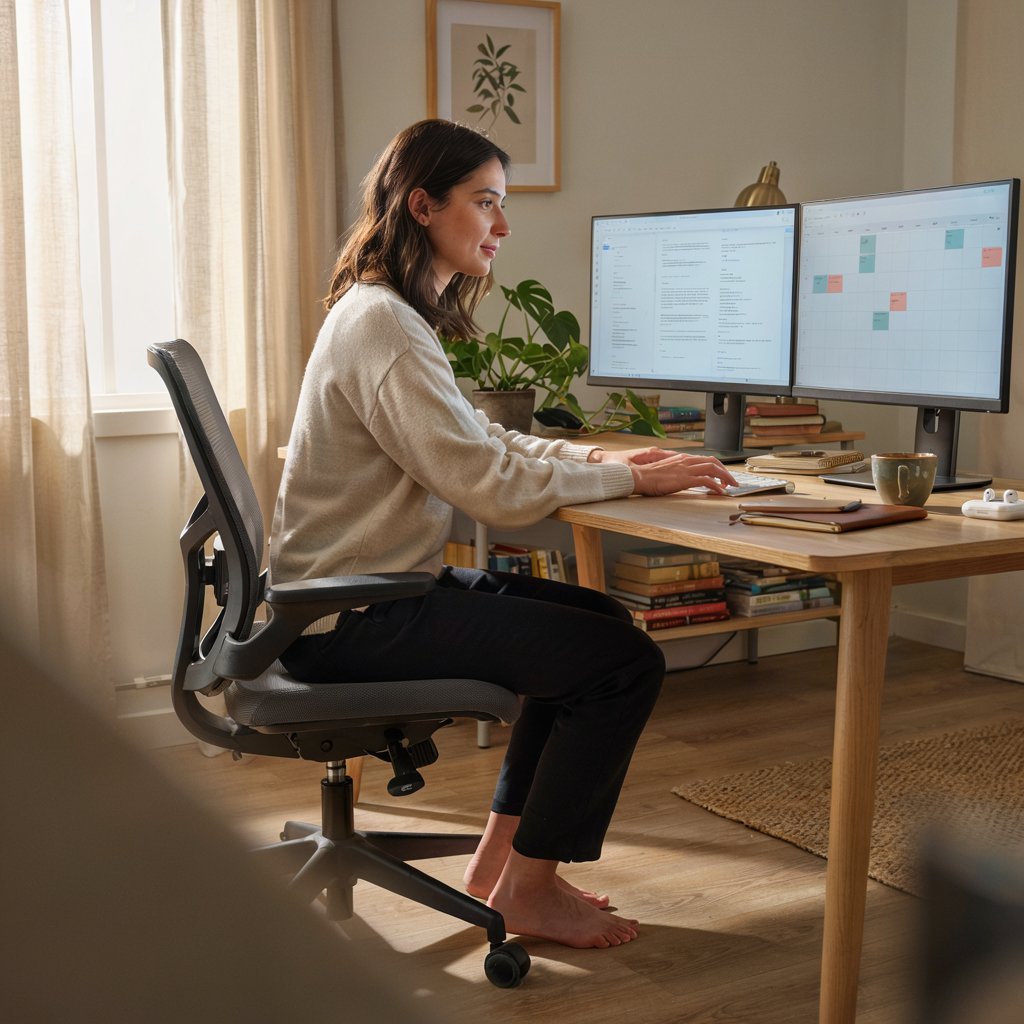
A monitor affects three things that directly shape your workday:
- Productivity. More screen real estate and sharper resolution mean less scrolling, less window-juggling, and faster task-switching. Developers can see more code at once, analysts can view wider spreadsheets, and writers can keep reference material open alongside their draft.
- Physical comfort. The wrong height, angle, or distance can contribute to neck strain, shoulder tension, and lower back discomfort, especially if you’re already dealing with a less-than-ideal chair or desk.
- Eye health. Flicker, glare, poor contrast, and harsh blue light can all contribute to digital eye strain, sometimes called computer vision syndrome. Symptoms include dry eyes, blurred vision, and headaches after long sessions.
None of this means you need to spend a fortune. It means you need to be intentional about which features actually matter for your work, rather than chasing whatever spec sheet looks most impressive.
Screen Size: Finding the Sweet Spot
Bigger isn’t automatically better. The right screen size depends on your desk depth, your viewing distance, and the kind of work you do.
24 Inches: The Compact Choice
A 24-inch monitor is a solid pick for smaller desks or tighter home office nooks, especially in shared living spaces or apartments where space is at a premium. It works well for general office tasks like email, browsing, video calls, and word processing.
27 Inches: The Modern Default
For most home office setups, 27 inches has become the practical sweet spot. It offers noticeably more screen space than a 24-inch display without requiring you to sit unusually far back, and it pairs well with higher resolutions like 1440p (QHD).
32 Inches and Above
Larger monitors can be excellent for spreadsheet-heavy work, video editing, or anyone who wants a single-screen alternative to a dual-monitor setup. The tradeoff is that you’ll want more desk depth and a slightly longer viewing distance to avoid having to swivel your head to see the edges of the screen.
Practical tip: Before buying, measure your actual desk depth and the distance from where you sit to where the monitor will go. A monitor that looks great in a store display can feel oversized or cramped once it’s on your specific desk.
Resolution and Pixel Density
Resolution refers to the number of pixels a display can show — more pixels generally means sharper text and finer detail, provided the screen size and resolution are properly matched.
- Full HD (1920 x 1080): Still common on budget monitors. Perfectly fine on a 24-inch screen, but text and icons can look noticeably soft on anything 27 inches or larger.
- QHD / 1440p (2560 x 1440): A strong middle ground for 27-inch monitors, offering meaningfully sharper text and more usable workspace than Full HD.
- 4K UHD (3840 x 2160): Excellent for detail-oriented work like photo editing, design, or spreadsheet-heavy analysis, and especially worthwhile on 27-inch and larger screens. Keep in mind that some older or budget hardware may need to rely on operating-system scaling to keep 4K text a comfortable size.
Pixel density (PPI) matters more than raw resolution numbers alone. The same resolution can look sharp on one screen size and noticeably softer on a larger one, because the pixels are stretched across more physical space. As a general guide, pair Full HD with smaller screens, QHD with mid-size screens, and 4K with larger displays if you want consistently crisp text.
Panel Types Explained: IPS vs. VA vs. OLED vs. TN
The panel technology inside your monitor has a bigger impact on your day-to-day experience than almost any other spec.
IPS (In-Plane Switching)
IPS panels are widely considered the go-to choice for home office and general productivity use. They’re known for consistent color accuracy and wide viewing angles, meaning the image doesn’t shift or wash out much even if you’re not sitting dead-center in front of the screen. This matters a lot if you frequently share your screen with a colleague or family member glancing over your shoulder.
Best for: general office work, content creation, color-sensitive tasks.
VA (Vertical Alignment)
VA panels typically offer higher contrast ratios than IPS, which can make dark tones and blacks look richer. The tradeoff is that colors can sometimes shift slightly when viewed from an angle, and response times are traditionally a bit slower than IPS or TN — though this varies by model and has narrowed in recent generations.
Best for: users who value deep contrast and don’t need extreme accuracy for color-critical work.
OLED
OLED monitors have become increasingly available for desktop use, offering near-instant response times, extremely high contrast (true blacks, since individual pixels can turn off completely), and vibrant colors. Historically, OLED technology has carried a higher price tag and, for static desktop content like taskbars and toolbars left on-screen for long periods, some users have raised concerns about potential burn-in over time — though manufacturers have introduced pixel-shifting and other mitigation features to address this.
Best for: users who want top-tier image quality and don’t mind paying a premium, or who split time between office work and media/gaming.
TN (Twisted Nematic)
TN panels are the oldest and generally the most budget-friendly panel type. They tend to have weaker color accuracy and narrower viewing angles compared to IPS or VA, though they can offer very fast response times. For a pure home office setup focused on documents, spreadsheets, and video calls, TN is usually the least recommended option today, since IPS panels have become widely available at similar price points.
Best for: extremely tight budgets or fast-paced tasks where color accuracy isn’t a priority (this is less relevant for most office work).
Refresh Rate: Do You Really Need 144Hz for Work?
Refresh rate, measured in Hertz (Hz), describes how many times per second a monitor redraws the image. Standard office monitors typically run at 60Hz, which is perfectly adequate for word processing, spreadsheets, browsing, and video calls.
Higher refresh rates (100Hz, 144Hz, or beyond) are mainly marketed for gaming, where smoother motion can provide a competitive edge. For office work, a higher refresh rate isn’t essential — but some users report that scrolling through long documents or web pages feels smoother on a higher refresh rate display, which can subtly reduce eye fatigue during long sessions.
Bottom line: If your home office setup doubles as a gaming or content-creation station, a higher refresh rate is a nice bonus. If it’s purely for work, don’t let this spec drive your budget away from more impactful features like panel quality or ergonomics.
Ergonomics and Adjustability
This is one of the most overlooked categories, and arguably one of the most important for anyone spending long hours at a desk.
Height Adjustment
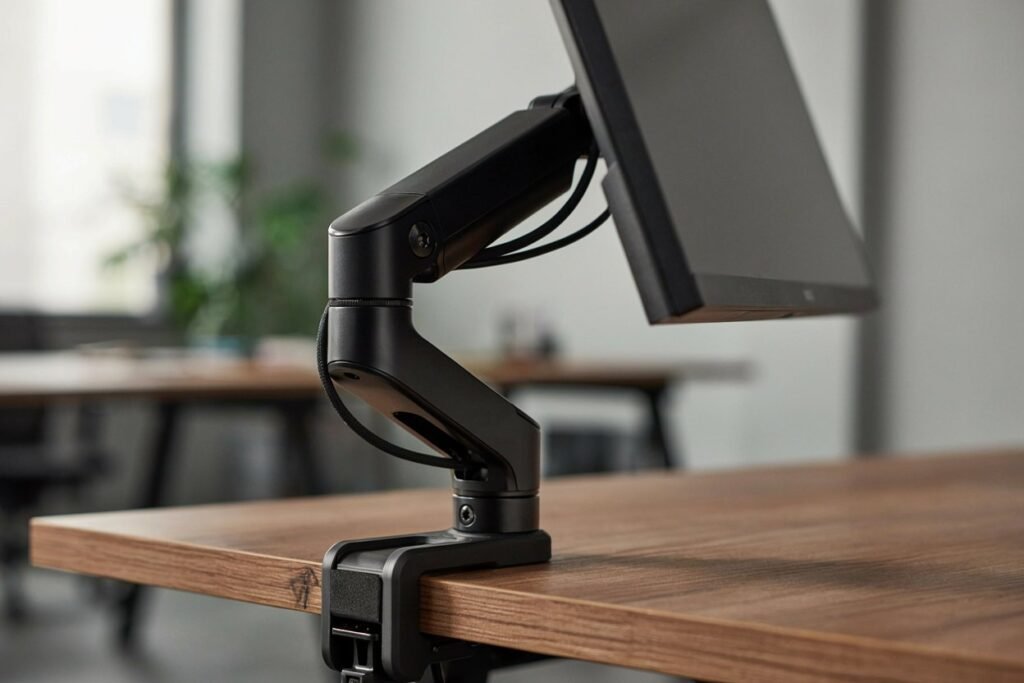
A monitor stand that adjusts in height lets you position the top of the screen roughly at or just below eye level, which helps you maintain a more neutral neck posture. Monitors that only offer a fixed stand often force you to either hunch forward or prop the display up on books and boxes — not exactly an elegant long-term solution.
Tilt, Swivel, and Pivot
- Tilt lets you angle the screen up or down slightly, useful for reducing glare from overhead lighting.
- Swivel lets you rotate the monitor left or right, handy for showing your screen to someone sitting beside you.
- Pivot allows the monitor to rotate 90 degrees into portrait orientation, which some writers, developers, and document-heavy professionals find useful for reading long pages of text without excessive scrolling.
VESA Mount Compatibility
If you plan to use a monitor arm rather than the included stand, check that the monitor supports a standard VESA mounting pattern. A monitor arm can free up desk space, make height and distance adjustments faster, and is often a worthwhile add-on for anyone serious about ergonomics.
Practical tip: When testing a new monitor at your desk, sit in your normal working posture and check that your eyes land roughly at the top third of the screen, with the display about an arm’s length away. Small adjustments here can make a noticeable difference over a full workday.
Eye Comfort Features
Several monitor features are specifically designed to reduce digital eye strain during long work sessions:
- Flicker-free backlighting: Reduces the imperceptible flickering that some backlighting technologies produce, which can contribute to eye fatigue for sensitive users.
- Low blue-light modes: Shift the color temperature to reduce blue light emission, particularly useful in the evening.
- Matte (anti-glare) coating: Reduces reflections from windows and overhead lights, which is especially valuable if your desk faces a window.
- Adjustable brightness: The ability to match your screen’s brightness to your room’s ambient lighting reduces the contrast-related strain that comes from a screen that’s too bright or too dim relative to its surroundings.
Practical tip: Beyond monitor settings, remember the 20-20-20 rule: every 20 minutes, look at something roughly 20 feet away for at least 20 seconds. This simple habit, recommended by eye-care professionals, can meaningfully reduce eye fatigue regardless of which monitor you own.
Connectivity and Ports
Before buying, check that a monitor’s ports match your setup, especially if you’re connecting a laptop rather than a desktop tower.
- HDMI: The most common standard for connecting laptops, desktops, and many other devices.
- DisplayPort: Common on higher-end monitors and often preferred for higher refresh rates or resolutions, particularly with desktop graphics cards.
- USB-C with Power Delivery: Increasingly popular for home office setups because a single USB-C cable can carry video signal, data, and charging power to a compatible laptop simultaneously — reducing cable clutter significantly.
- Built-in USB hub: Some monitors include USB-A or USB-C ports on the monitor itself, effectively turning your display into a mini docking station for peripherals like a keyboard, mouse, or external drive.
Practical tip: If you use a laptop as your primary work computer, a monitor with USB-C Power Delivery can genuinely simplify your desk setup — one cable in, and your laptop charges while driving the external display.
Single Monitor vs. Dual Monitor vs. Ultrawide
This is one of the more personal decisions in building a home office, and there’s no universally “correct” answer.
Single Large Monitor
A single 27- to 32-inch monitor keeps your desk simpler and avoids the visible seam (bezel) between two screens. Many operating systems now offer robust window-snapping tools that make splitting a single large screen into multiple work zones easy.
Dual Monitors
Two monitors side by side can be excellent for workflows that benefit from having distinctly separate windows — for example, a video call on one screen and notes or a presentation on the other. The downside is the visible bezel gap between screens, which can be mildly distracting for tasks that would otherwise span the full width smoothly, like video editing timelines.
Ultrawide Monitors
Ultrawide monitors (commonly in a 21:9 or wider aspect ratio) offer a single, seamless wide canvas, effectively combining the benefits of extra width without a bezel gap. They can be particularly appealing for multitasking, spreadsheet work, and video editing. The tradeoffs are typically a higher price point and the need for more desk depth and width.
Which should you choose? If you frequently reference multiple full-height windows side by side (like code and documentation, or a video call and a shared document), dual monitors or an ultrawide are worth considering. If you mostly work within one or two apps at a time, a single well-sized monitor is often simpler and just as effective.
Color Accuracy for Creative and Professional Work
If your home office work involves photography, video editing, graphic design, or any visually detail-oriented task, color accuracy becomes a much more important consideration.
Look for monitors that specify coverage of standard color gamuts (such as sRGB) and, ideally, factory color calibration data. Some monitors also support broader color spaces relevant to specific creative industries. If color accuracy is mission-critical for your work — for example, if clients will view your final files on their own accurately calibrated displays — consider a monitor marketed specifically for creative professionals, and factor in the cost of a hardware calibration tool as well.
For general office work, spreadsheet analysis, writing, or video calls, most modern IPS panels will provide more than adequate color performance without needing specialized creative-grade options.
Built-In Speakers, Webcams, and Other Extras
Many monitors now include additional features that can reduce desk clutter:
- Built-in speakers: Convenient for casual use, though generally not a substitute for dedicated speakers or a headset if audio quality matters for calls or media.
- Built-in webcam: Some monitors integrate a webcam, often a pop-up or retractable design for privacy, which can eliminate the need for a separate external webcam.
- KVM switch support: Useful if you regularly switch between two computers (for example, a personal laptop and a work laptop) and want to use the same keyboard, mouse, and monitor for both.
These extras are nice-to-haves rather than essentials, but they can add real convenience and reduce the number of separate peripherals cluttering your desk.
Budget Tiers: What to Expect at Each Price Point
Exact pricing changes frequently and varies by region and retailer, so treat the following as general positioning rather than fixed numbers — always check current prices before purchasing.
Entry-Level
Typically includes basic Full HD or QHD resolution, IPS or VA panels, limited ergonomic adjustment (often tilt-only), and fewer port options. A reasonable choice for light office use on a tight budget.
Mid-Range
This tier usually introduces better ergonomics (height adjustment, swivel, pivot), QHD resolution as a common standard, USB-C connectivity, and improved eye-comfort features. This range tends to offer the best overall value for most home office users.
Premium
Premium monitors often include 4K resolution, OLED or high-end IPS panels, extensive connectivity (including USB-C Power Delivery and USB hubs), superior color accuracy, and refined ergonomic stands or bundled monitor arms. This tier suits professionals with color-critical or detail-heavy work, or anyone who simply wants the best possible experience and is willing to pay for it.
Comparison Table: Monitor Types at a Glance
| Feature | IPS Panel | VA Panel | OLED Panel | TN Panel |
|---|---|---|---|---|
| Color accuracy | Excellent | Good | Excellent | Fair |
| Viewing angles | Wide | Moderate | Wide | Narrow |
| Contrast ratio | Good | Very good | Exceptional | Fair |
| Response time | Good | Moderate | Excellent | Very fast |
| Typical price | Budget to mid-range | Budget to mid-range | Premium | Budget |
| Best for home office | Yes — top general pick | Good alternative | Great if budget allows | Least ideal for most office use |
| Burn-in risk (static content) | None | None | Possible with prolonged static images | None |
Note: Actual performance varies by manufacturer and specific model. Always check current independent reviews for the exact monitor you’re considering.
Pros and Cons of Popular Monitor Categories
24-Inch Full HD Monitor
Pros: Affordable, compact, fits small desks, adequate for basic tasks. Cons: Limited multitasking space, text can look less crisp compared to higher-resolution options.
27-Inch QHD Monitor
Pros: Excellent balance of screen space and sharpness, fits most desks comfortably, widely available across price points. Cons: Requires slightly more desk depth than a 24-inch screen; higher-refresh or OLED versions can push up the price.
Ultrawide Monitor
Pros: Seamless wide canvas, great for multitasking without a bezel gap, can replace a dual-monitor setup. Cons: Higher price, needs a deep and wide desk, may not suit every workflow (e.g., tasks that benefit more from vertical space).
Dual Monitor Setup
Pros: Flexible, budget-friendly if using two mid-range monitors, great for clearly separated tasks. Cons: Visible bezel gap, requires more desk width, can involve more cabling.
OLED Monitor
Pros: Outstanding color and contrast, fast response times, striking visual quality for both work and media. Cons: Generally higher price, some concern around static-image burn-in for office-style content like fixed toolbars.
Step-by-Step: How to Choose a Monitor for Home Office in 5 Steps
- Define your primary use case. General office work, creative work, coding, or a mix? This shapes how much you should prioritize color accuracy versus refresh rate versus screen space.
- Measure your desk and workspace. Confirm the depth, width, and lighting conditions (windows, overhead lights) before choosing a size or finish (glossy vs. matte).
- Set a realistic budget range. Decide what tier makes sense for your needs, and resist the urge to overspend on flashy specs (like extremely high refresh rates) that won’t meaningfully help office work.
- Prioritize ergonomics and eye comfort. These features have an outsized impact on how you feel at the end of a workday, even though they’re less exciting on a spec sheet than resolution or panel type.
- Check connectivity against your actual devices. Confirm your laptop or desktop’s available ports match the monitor’s inputs, and consider USB-C Power Delivery if you primarily work from a laptop.
Common Mistakes to Avoid
- Chasing gaming specs for office work. A high refresh rate or ultra-fast response time rarely matters if your daily tasks are spreadsheets, documents, and video calls.
- Ignoring the stand. A great panel paired with a poor, non-adjustable stand can still leave you in an uncomfortable posture all day.
- Overlooking desk depth. A monitor that looks reasonably sized in photos can feel oversized once it’s actually sitting on your desk.
- Assuming bigger resolution always looks sharper. Pairing a high resolution with too small a screen size, or too large a screen with too low a resolution, can both lead to disappointing results — match resolution to screen size.
- Forgetting about glare. A glossy screen facing a bright window can be frustrating no matter how good the panel technology is underneath.
Frequently Asked Questions
1. What size monitor is best for a home office? For most home office setups, 27 inches offers a strong balance of extra workspace and comfortable viewing distance. Smaller desks may prefer 24 inches, while larger desks and detail-heavy work can benefit from 32 inches or an ultrawide format.
2. Is 1440p or 4K better for office work? Both work well. 1440p (QHD) offers a noticeable sharpness improvement over Full HD at a more moderate price, while 4K provides even finer detail, which is especially valuable for design, photo editing, or spreadsheet-heavy work — provided your screen size is large enough to make use of the extra pixels.
3. Do I need a high refresh rate monitor for a home office? Not really. Standard 60Hz is sufficient for typical office tasks like email, documents, and video calls. Higher refresh rates are mainly beneficial for gaming or fast-motion content.
4. Is IPS or VA better for home office use? IPS is generally considered the stronger all-around choice for office work due to its color consistency and wide viewing angles, which matter for screen sharing and general comfort. VA can be a solid alternative, particularly if you value deeper contrast.
5. Should I get one large monitor or two smaller monitors? It depends on your workflow. If you frequently need multiple full-size windows open side by side, dual monitors or an ultrawide can help. If you mostly work within one or two applications, a single well-sized monitor is often simpler and equally effective.
6. How important is a monitor arm for a home office? A monitor arm can significantly improve ergonomics by making it easy to adjust height, distance, and angle, and it frees up desk space compared to a bulky stand. It’s a worthwhile add-on for anyone spending long hours at their desk, though not strictly mandatory if your monitor’s included stand already offers good adjustability.
7. Are OLED monitors worth it for office work? OLED monitors offer outstanding color and contrast, but they generally cost more and carry some risk of burn-in with prolonged static images (like a fixed taskbar), which is more relevant to office use than to varied media content. They’re a great option if budget allows and you also use your setup for media or creative work.
8. What connectivity do I need if I primarily use a laptop? Look for HDMI or DisplayPort at minimum, and consider USB-C with Power Delivery if you want a single-cable solution that handles video, data, and charging simultaneously — this can meaningfully simplify your desk setup.
9. Does screen size affect eye strain? Screen size itself is less important than viewing distance, resolution matching, brightness, and glare control. A well-matched, appropriately positioned monitor of almost any reasonable size can be comfortable, while a poorly positioned or overly bright screen can cause strain regardless of size.
10. How much should I budget for a good home office monitor? This varies significantly by region, retailer, and current market conditions, so it’s best to research current pricing at the time of purchase rather than relying on fixed figures. As a general framework, entry-level options prioritize basic functionality, mid-range options tend to offer the best overall value, and premium options add higher resolution, better panels, and more refined ergonomics.
Conclusion
Choosing the right monitor for your home office isn’t about chasing the most impressive spec sheet — it’s about matching the display to how you actually work. If you spend your day in documents, spreadsheets, and video calls, a 27-inch QHD IPS monitor with solid ergonomic adjustment will likely serve you better than a flashy high-refresh-rate gaming display. If your work involves color-critical creative tasks, investing in better color accuracy and possibly a larger or ultrawide screen will pay off in the long run. And no matter what specs you choose, don’t underestimate the impact of ergonomics and eye-comfort features — they’re often the difference between a workspace that feels sustainable and one that leaves you drained by the end of the day.
Take the time to measure your desk, define your priorities, and test your options before committing. When you know how to choose a monitor for a home office based on your actual needs rather than marketing buzzwords, you’ll end up with a setup that supports your productivity and comfort for years to come.